
Parental Controls One Year After Australia’s Under-16 Social Media Ban
On 10 December 2025, the Australian Government brought in a law that stops under-16s from having accounts on social media platforms like TikTok and Instagram. The idea was to protect young Australians from the pressures and risks that come with having a social media account.
Almost a year on, most kids are still on social media. In fact, eSafety found that more than eight in 10 under-16s still used social media three months after the ban started.
For this reason, you still need parental controls. Parental controls are settings that limit what your child can see and do online. You can set them up on your child’s devices and on your
Key takeaways
The under-16 social media ban hasn’t stopped most kids from using social media. It also doesn’t cover apps like WhatsApp, Roblox, and YouTube Kids. Parental controls allow you to set up your own limits on your child’s devices and home wi-fi. They work best when you also talk with your child about the rules.
What does the under-16 social media ban cover?
The ban aims to stop under-16s from having accounts on certain social media apps. The apps have to check their users’ ages, and parents can’t give permission for an under-16 to have an account.
Kids and parents won’t get fined if a child ends up with an account anyway. Only the apps can face penalties.
eSafety says these apps are age-restricted:
- Snapchat
- Threads
- TikTok
- Twitch
- X
- YouTube
- Kick
This list can change over time.
These popular apps weren’t on the list when the ban began:
- Messenger
- Discord
- Roblox
- YouTube Kids
The ban only covers accounts, too. Your child can still watch YouTube videos while logged out.
What happened in the first year of the ban?
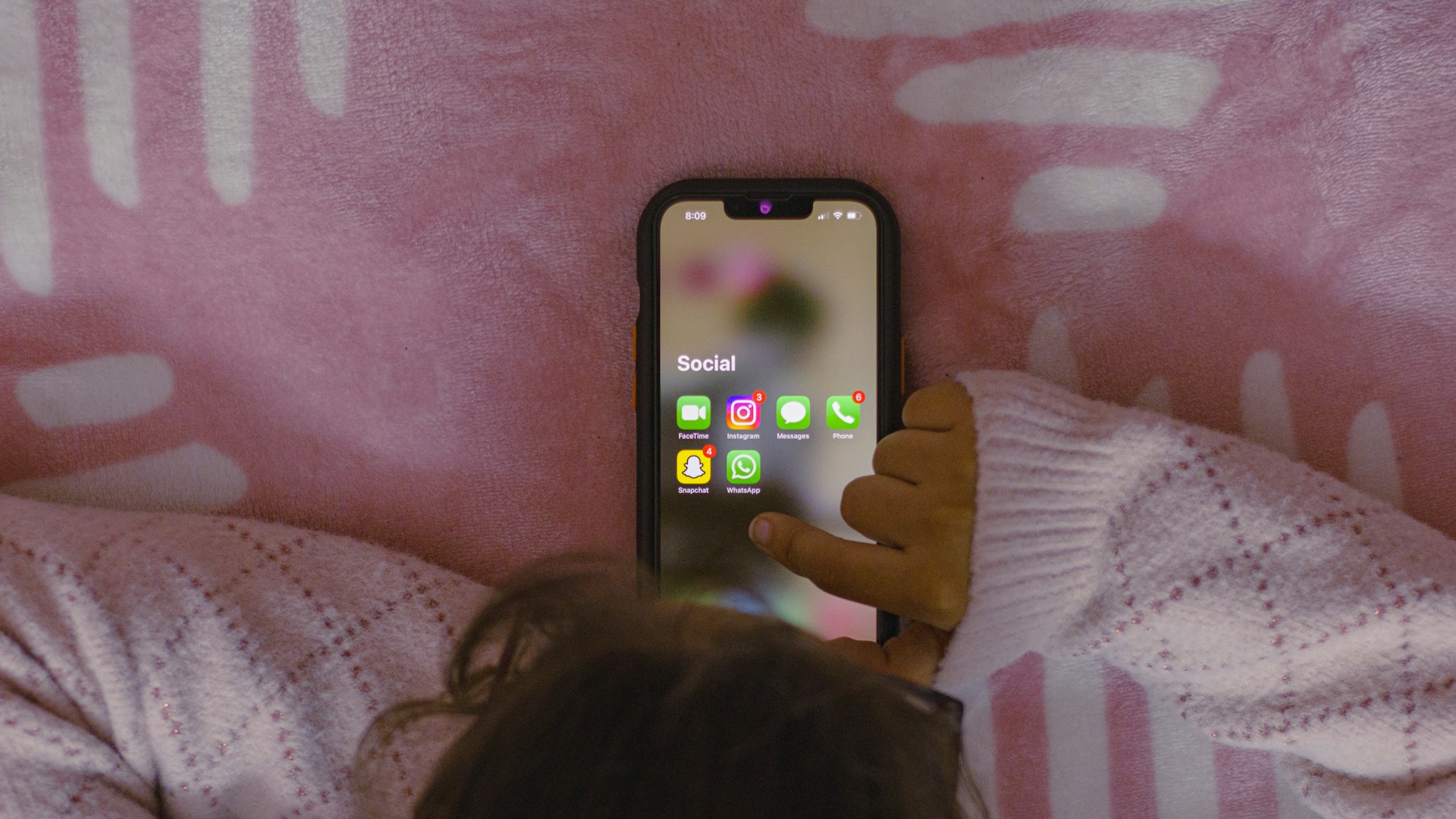
By mid-December 2025, the apps had removed access to 4.7 million accounts held by under-16s.
In July 2026, eSafety released its first study on the ban. It surveyed more than 4,000 kids and families. Here’s what it found three months in:
- The share of under-16s with an account fell from about 52% to 42%.
- Kids used social media about as much as they did before the ban.
- About half the kids who still had an account said the app never checked their age.
- Parents knew less about what their kids did on social media.
In October 2026, the Communications Minister said eSafety was preparing to take Facebook, Instagram, Snapchat, TikTok, and YouTube to the Federal Court for allegedly failing to stop under-16s from having accounts.
The government’s claim is that these platforms didn’t take “reasonable steps” to keep under-16s off, which is what the law requires.
How to set up parental controls
Parents can’t rely on the social media ban. Instead, you’ll want to set up parental controls on the devices your child uses, including their phone, laptop, TV, and game console. Most devices don’t turn these controls on for you.
Here's what to do.
Apple introduced new parental controls in iOS 27.
With Ask to Browse, your child asks you before opening a new website. It’s on by default for kids under 13. With Allowed Contacts, messages from new people are hidden until you approve them, as well.
On Android phones and Chromebooks, Google Family Link allows you to approve apps and set daily limits from your phone.
Finally, don’t forget AI chatbots. ChatGPT and Gemini both have their own parental controls. eSafety’s latest guide, from October 2026, lists both.
Some paid antivirus plans also come with parental controls. Read our guide to free vs. paid antivirus to explore your options.
Watch out for these workarounds
Kids are clever, and many find sneaky ways around rules. Look out for:
- A fake birth year.
- VPN apps, which can get around wi-fi filters.
- Software updates. eSafety says an update or a reset can undo your controls.
- Other people’s devices; if your child uses a grandparent’s tablet, set up controls on that, too.
Chat with your kids about the rules
Parental controls are most effective when your child knows why they’re there. eSafety’s family tech agreement helps you agree on house rules for devices.
FAQs
Can my child still use YouTube under the ban?
Yes, they can watch YouTube logged out. Under-16s can’t have a YouTube account, but they can still watch videos. For kids 12 and under, eSafety says a parent can set up YouTube Kids.
Are parents fined if their child is on social media?
No. There are no penalties for under-16s or their parents. Only platforms can face penalties.
Can I give my child permission to have an account?
No. Under the law, a parent saying yes doesn’t count. The platform still has to stop under-16s from having accounts.
Do parental controls stop VPNs?
Not on their own. A VPN hides your child’s internet traffic and sends it through another server. Your wi-fi filter can’t see which sites your child visits, so it can’t block them. App approvals help with this, because your child has to ask you before they can install a VPN app. Some VPNs work as browser extensions, though, so check your child’s browser, too.
Need Help Setting Up Parental Controls?
Setting up parental controls across multiple devices can be confusing and time-consuming. Jim's IT can set up parental controls on phones, tablets, computers, smart TVs and gaming consoles. We can also block inappropriate websites, filter internet content and set screen time limits. Protect your family online. Call 131 546 or contact us online for professional assistance.

Paul Zdzitowiecki is an IT specialist and contributor at Jim’s IT, with extensive experience in computer repairs, managed IT services, and business technology solutions across Australia. Paul regularly writes about computer repairs, Wifi and internet optimisation, cybersecurity, and business IT support, delivering practical, easy-to-understand advice that helps readers solve real-world tech problems.