
17 ways to speed up your computer in minutes

Computer running painfully slow? The good news is, there are some quick and free fixes you can try right now to speed it up. Restarting, closing tabs, stopping startup programs, and freeing up storage space can get a sluggish computer back up to speed.
If it's still slow after that, it's probably due for an upgrade.
Here's how to speed up your computer.
Key takeaways
To speed up your computer, first restart it. Close the tabs and startup programs you don't need. Free up storage and install your updates. If your computer is still slow after this, you might need an SSD or RAM upgrade
Quick fixes you can do right now
1. Restart your computer properly
On Windows 10 and 11, Restart does a complete system refresh. Fast Startup is switched on by default, so shutting down saves part of the system and reloads it next time. Restarting starts Windows fresh.
If you close your laptop lid every night, it may have gone weeks with no real restart.
Go to Start > Power > Restart.
2. Close browser tabs and extensions you don't need
Every open tab and extension uses memory. So, go ahead and close the tabs you're done with.
Turn on the setting that puts unused tabs to sleep. In Chrome, it's called Memory Saver. In Edge, it's sleeping tabs. A sleeping tab frees up memory and reloads when you click on it.
While you're at it, remove any extensions you don't recognise or don't use.
3. Find out what's using the most computer power
Sometimes, one program is using most of your computer's power.
- On Windows, press Ctrl + Shift + Esc to open Task Manager. Click the CPU or Memory column to sort by what's using the most.
- On a Mac, press Cmd + Space, type Activity Monitor, and open it.
If a program is using way more than it should, click it and choose End task on Windows. On a Mac, click the X button at the top.
Only end programs you recognise, and save your work first. Your computer should speed up.
4. Stop programs opening when you start up
Lots of programs set themselves to open when your computer turns on. Common examples include Chrome and Spotify.
- On Windows, open Task Manager and click Startup apps. Right-click anything you don't need and choose Disable.
- On a Mac, go to System Settings > General > Login Items and remove what you don't need.
Clear space and tidy up
5. Free up storage space
When your drive is almost out of space, everything slows down. Your computer needs spare room for temporary files while it works.
- If you use Windows, go to Settings > System > Storage and turn on Storage Sense. It deletes junk files for you automatically.
- If you have a Mac, head to Apple menu > System Settings > General > Storage to see what's taking up room.
6. Uninstall programs you don't use
You might have a ton of programs you never use, all taking up space. Some might even be running in the background without you knowing.
Uninstall them in Settings > Apps > Installed apps on Windows, or drag them to the Bin on a Mac.
7. Clear out temporary files, downloads, and the recycle bin
If you use Windows, you've likely got a whole lot of junk hiding in:
- Temporary files and the Recycle Bin. Search for Disk Cleanup, or go to Settings > System > Storage > Temporary files. Empty the Recycle Bin, too.
- Your Downloads folder. The Temporary files list includes Downloads, so untick it if you'd like to go through it yourself first.
8. Move photos and videos to the cloud or an external drive
Photos and videos can take up a lot of room. OneDrive Files On-Demand on Windows and Optimise Mac Storage in iCloud save them online until you open them, so they barely use any space on your computer.
An external drive works, as well, if you prefer physical storage.
Check the settings that might slow you down
9. Install your updates
Updates address security holes. They also fix bugs and performance problems that can slow your computer down.
See if your device needs an update:
- Windows: Settings > Windows Update
- Mac: System Settings > General > Software Update
10. Switch your power mode to performance
On battery saver, your laptop slows itself down on purpose to save power. That's handy when your battery's low, but if it's not, you might want to turn it off.
11. Turn off fancy visual effects
Animations and see-through windows use up your computer's power. Turning them off makes the biggest difference on older computers.
12. Pause cloud syncing when you need speed
OneDrive, Dropbox, iCloud, and Google Drive can chew through your computer's power while they sync big folders. Say you've just added 500 holiday photos. Your computer might run at a snail's pace until they've finished uploading.
For OneDrive, Dropbox, and Google Drive, click the app's icon near the clock on Windows, or in the menu bar on a Mac, and choose Pause. OneDrive lets you pause for 2 hours and restarts by itself. With the others, remember to switch syncing back on when you're done.
Rule out hidden culprits
13. Scan for viruses and malware
Malware can run in the background and use up your computer's power. Run a complete scan with Windows Security, which is free anti-virus software that comes with Windows. Or, use your own antivirus.
14. Clean out the dust and let it breathe
Dust clogs vents, so your computer heats up. To cool off, the processor slows itself down.
This could be a problem if you notice a loud fan or if your laptop is hot to the touch.
15. Make sure it's not your internet
If websites and streaming are slow but everything else runs fine, the problem could be your internet. To find out:
- Run a speed test.
- Restart your modem. Unplug it for 30 seconds. Then, plug it back in.
If websites speed up after the restart, your computer was fine all along.
Upgrade your computer
If you’ve tried the fixes above and your computer is still slow, an upgrade might be the next step.
16. Swap your old hard drive for an SSD
An old hard drive has a spinning disk inside. It has to hunt for each file. A solid-state drive (SSD) has no spinning parts, so it finds files almost instantly. It can be the single biggest speed boost for an older computer.
17. Add more RAM
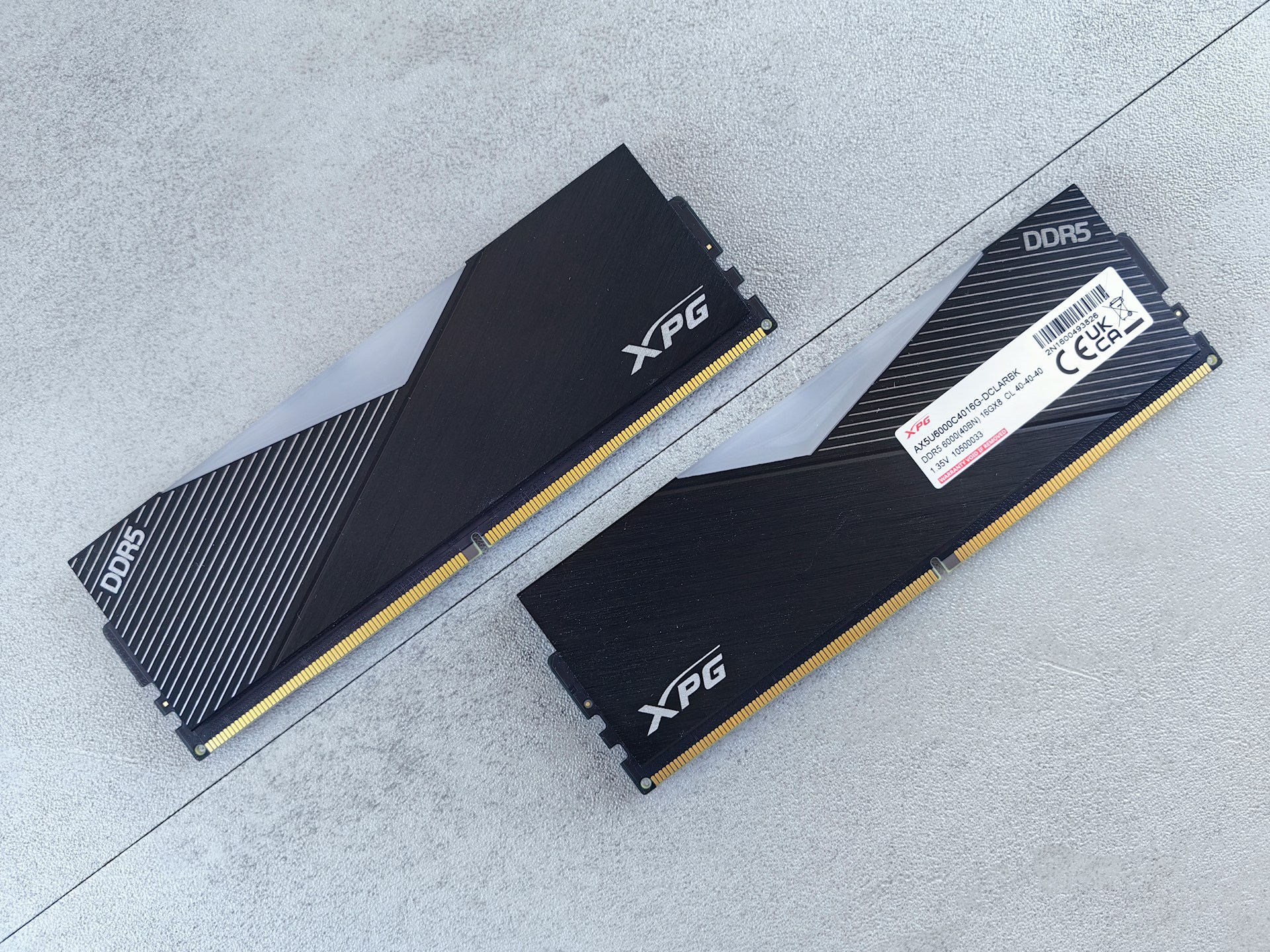
RAM is what lets your computer do lots of things at once. To check on it, open Task Manager > Performance > Memory. If it’s close to the top most of the time, more RAM will help.
As a rough guide:
- 8GB: Enough for basic use.
- 16GB: Comfortable multitasking.
FAQs
Why is my computer so slow all of a sudden?
A sudden computer slowdown can come from something running in the background, like a big update installing or cloud storage syncing a large folder. Press Ctrl + Shift + Esc to open Task Manager and see what's using the most power.
Does restarting your computer make it faster?
Yes, restarting can make a slow computer faster. It closes everything running in the background and starts fresh.
Is it worth upgrading an old computer or should I buy a new one?
It depends on how old it is. Upgrades make the most sense for computers about 5 to 7 years old. An SSD or more RAM can give them a big speed boost for less than the cost of a new machine. If your computer is over 10 years old, you're probably better off replacing it.
How much RAM do I need?
In most cases, 8GB is enough for basic use, and 16GB gives you comfortable multitasking.
Is Your Computer Running Slow? Let Jim’s IT Speed It Up!
Is your computer running slower than it should? Jim’s IT can help restore its speed and performance with professional computer upgrades, including SSD installations, RAM upgrades and other hardware improvements. With same-day service and our No-Fix, No-Fee Guarantee, getting your computer running smoothly again is easy. Call 131 546 or contact us online today.

Paul Zdzitowiecki is an IT specialist and contributor at Jim’s IT, with extensive experience in computer repairs, managed IT services, and business technology solutions across Australia. Paul regularly writes about computer repairs, Wifi and internet optimisation, cybersecurity, and business IT support, delivering practical, easy-to-understand advice that helps readers solve real-world tech problems.