
Setting up a new Computer? 10 things you should do first
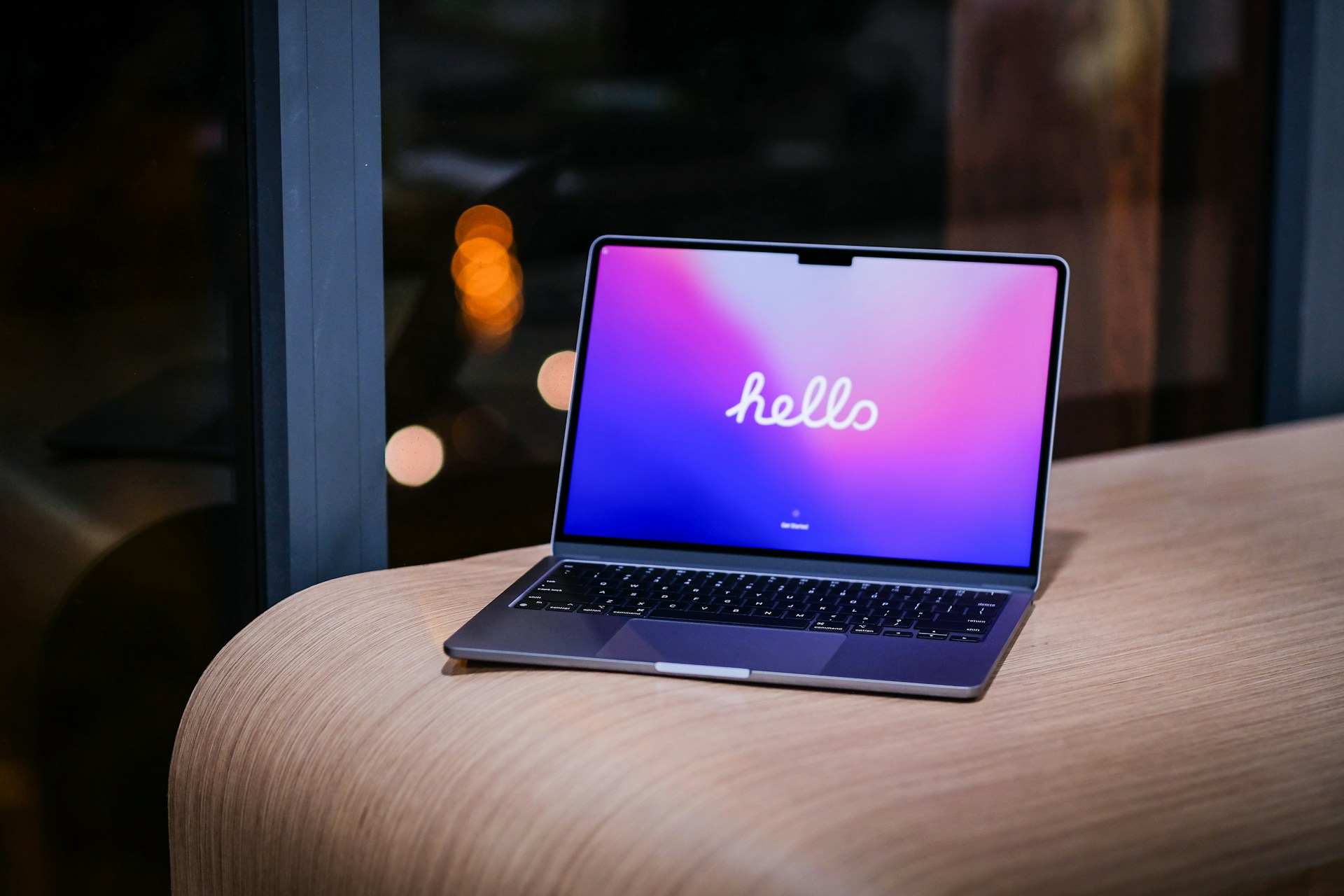
Wondering how to set up a new computer or laptop? First, you'll work through the initial account and Wi-Fi setup. Then, you can transfer your old files, check your security settings, and reinstall the software you use.
There are also a few tips and tricks along the way that'll help you get the most out of your new machine. We cover the whole process step-by-step in this guide, so you know exactly what to do and in what order.
If you need a hand at any point, don't hesitate to get in touch.
Key takeaways
To set up a new computer, connect to Wi-Fi and log into your Microsoft account or Apple Account. Next, set up your email and transfer your old files. Get your security settings and updates sorted right away, too. If all this sounds like a headache, our computer setup service takes the whole process off your hands.
How to set up a computer step-by-step
Here's how to set up a computer in ten steps.
Step 1: Connect to Wi-Fi and sign in
Plug in and turn on your new computer. You'll need to connect to your home Wi-Fi right away.
Follow the computer setup prompts. Eventually, you'll be asked to sign in.
On a Windows laptop or PC, that's your Microsoft account. On a Mac, it's your Apple Account (formerly called your Apple ID).
If you've had one before, sign in with your existing details rather than creating a new one. A lot of your settings and purchases are connected to that account.
Step 2: Install any updates
Let the computer check for updates.
New computers sometimes sit in a box for months before they're sold, so there can be a decent amount to install.
Step 3: Set up your email
Add your email account, whether that's Outlook, Gmail, or something else. If you've got more than one email address, add them all now while you're already in the settings.
If you sign into the same email account you used on your old computer, server-stored emails will appear again in your inbox when the account finishes syncing.
Step 4: Transfer your old files and data
This is where photos, documents, and anything else from your old computer get transferred. You've got a few options here:
- Use an external hard drive to copy files across manually.
- Sign into cloud storage like OneDrive or iCloud, and let your files sync down automatically.
- Use a data transfer tool, like Migration Assistant on Mac.
- Ask a technician to handle the transfer for you.
Step 5: Install antivirus and turn on security software
New computers usually come with protection built in, like Windows Security, but it's a good idea to check whether it's switched on.
If you'd like something more robust, you can install the best anti-virus software in Australia for your needs.
Step 6: Set up cloud backup
Cloud backup means your files get saved somewhere other than just your computer, so you're covered if anything ever goes wrong with the machine itself.
OneDrive comes with Windows, and iCloud does a similar job on a Mac:
- OneDrive can back up and sync Windows folders.
- iCloud can sync files, photos, and other data on a Mac. If you want a more complete Mac backup, you can also set up Time Machine.
Step 7: Install the software and apps you actually use
Rather than installing everything you can think of, stick to what you genuinely use. That might include:
- Google Chrome or another browser you prefer.
- Office 365, if you need Word, Excel or Outlook.
- Spotify for music.
- Any specific apps for work, like accounting or design software.
Step 8: Connect your printer and accessories
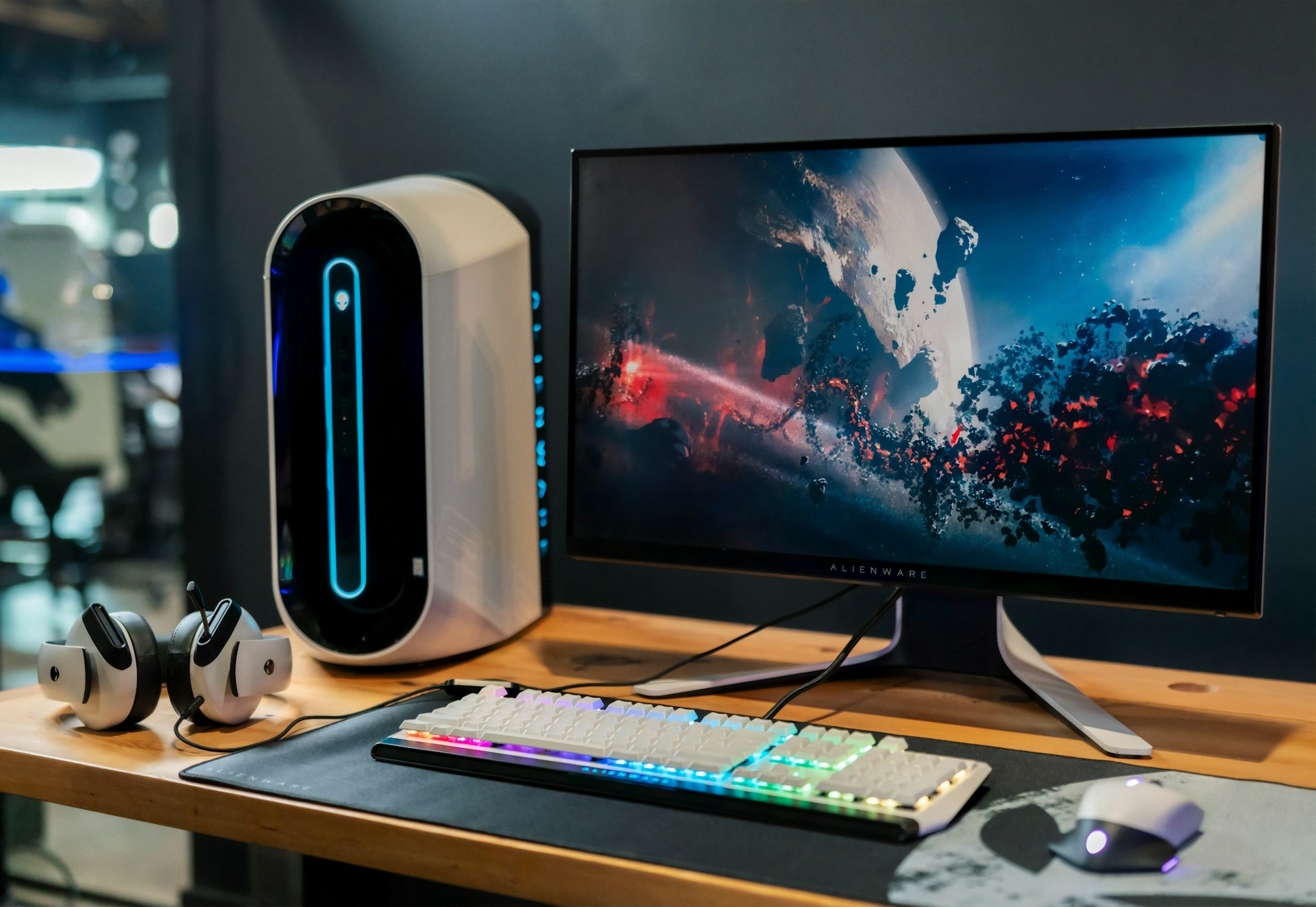
Connect your printer, webcam, mouse, monitor, or any other accessories you're using.
Most modern printers connect wirelessly, so you'll add them through your computer's settings rather than plugging in a cable. If it's not detected automatically, check the printer brand's website for the right driver to download.
Step 9: Set up dual or triple monitors, if you're using them
If you use two or three screens, you might need a docking station or a monitor hub, especially on a laptop. This lets you connect multiple monitors through a single cable, rather than juggling several separate connections.
Our team can advise on the right docking station for your particular laptop model.
Step 10: Organise or dispose of your old computer
When everything's transferred and double-checked, decide what happens to your old computer. If you're not keeping it, wipe your personal data before recycling or donating it.
Checklist: New computer setup
Here's a new computer setup checklist you can tick off as you go:
- Connect to Wi-Fi.
- Sign into your Microsoft account or Apple Account.
- Complete Windows 11 account setup, including your PIN or password.
- Install all available software updates.
- Set up your email account (or accounts).
- Check what version of Microsoft Office you had, so you reinstall the right one.
- Transfer photos, documents, and files from your old computer.
- Check your historical emails have synced and are viewable in Outlook.
- Check antivirus and security software are switched on.
- Turn on cloud backup (OneDrive or iCloud).
- Install the browser, apps, and software you use most.
- Install an ad blocker, if you'd like one.
- Connect your printer.
- Connect your mouse, webcam, keyboard, and other accessories.
- Set up a docking station if you use dual or triple monitors.
- Arrange your display settings after multiple monitors are connected.
- Wipe personal data from your old computer if you're not keeping it.
- Recycle, donate, or dispose of your old computer responsibly.
FAQs
How do you set up a new computer for the first time?
Connect to Wi-Fi, sign into your Microsoft account or Apple Account, and install updates. Then, set up your email and transfer your old files. When that's done, install your security software and the apps you use all the time.
What is the first thing you do when you get a new computer?
Sign into your Microsoft account on Windows, or your Apple Account on a Mac. A lot of your synced files, settings, purchases, and services will be connected to that account.
Do I need a Microsoft account to set up a new computer?
Yes, if you're setting up a device with Windows 11 Home or Windows 11 Pro for personal use.
Your account will also connect your device to OneDrive, Microsoft 365 purchases, settings, and other Microsoft services.
Can I transfer everything on my PC to a new PC?
Mostly, yes. Photos, documents, emails, and files transfer easily through cloud storage or an external hard drive.
Some software licences and installed programs don't carry over, so you might need to reinstall those separately.
What should I transfer from my old computer to my new computer?
At a minimum, transfer your photos, documents, emails, and browser bookmarks. It's also a smart idea to take note of your saved passwords and any software licence keys.
Need Help With Your New Computer?
Setting up a new computer can take hours — especially when you need to transfer files, set up email, install programs and get everything working the way you like it. Jim’s IT can take care of the entire setup for you, so your new computer is ready to use from day one. Call our team on 131 546 or book online today.

Paul Zdzitowiecki is an IT specialist and contributor at Jim’s IT, with extensive experience in computer repairs, managed IT services, and business technology solutions across Australia. Paul regularly writes about computer repairs, Wifi and internet optimisation, cybersecurity, and business IT support, delivering practical, easy-to-understand advice that helps readers solve real-world tech problems.