
How to Upgrade to Windows 11 Before it's Too Late

If you’re wondering if you should upgrade your computer to windows 11, and what difference windows 11 will make, you are not alone. Many users are still waiting to see if its worth upgrading to windows 11.
Now the clock is ticking and Windows 10 will be at end of life on October 14th 2025.
What this means is that Microsoft will stop releasing security updates, patches or bug fixes. Your computer will still work but as the days roll Windows 10 becomes less secure and makes your computer vulnerable to being hacked, catching a virus and may experience compatability issues with other software.

In this guide we will run you through how to upgrade to Windows 11 and the key things to consider.
- Computer specifications
- Backups
- Upgrade or Fresh Installation?
- Keep your files
- Intro to windows 11.
- Restoring Windows 10
Computer specifications
Before you can install Windows 11, you need to check that the computer actually meets the minimum requirements. One way you can do this is via the ‘Windows Update’ tool in Windows 10, which will tell you if your computer can run Windows 11.
The second way to check is via the free Microsoft ‘PC Health Check’ program which you can download here: The health check tool will tell you if your computer’s hardware is too old.
As a general rule of thumb any computers older than 5-10 years old, will not be able to run Windows 11. But Jim’s IT always recommend we double check.
The minimum specifications to run Windows 11 are:
- 1ghz CPU, 64-bit processor
- 4G of RAM
- 64GB of Hard drive space
- Broadband internet connection
Backups
Before doing any type of upgrade, we always recommend doing a full backup, or at least backing up all your important documents, photos and emails. If you want the safest option, we actually recommend doing a data-clone, before upgrading.
Upgrade or Fresh Installation?
Now the big question is whether you upgrade windows 10 or install a fresh Windows 11 installation. Generally we recommend backing up all user’s data first and trying a windows 11 upgrade.
In the event there is a glitch (which can sometimes happen with an upgrade) then we move to a fresh windows 11 install.
Keep your files
To perform a regular update without having to reinstall your programs or files, there are two options. You can select the “keep your files and apps" option” when performing the windows 11 upgrade. Or if this option is not offered to you, you can download the Windows 11 installation assistant here:
Fresh Windows 11 installation
If you have the time and don’t mind getting a bit techy, a fresh windows 11 installation is the best option if you want the best performance. Over the years windows will accumulate a lot of junk and your hard drive will get full of old files and program you forgot about.
Reformatting your computer and starting from scratch will make windows run faster, but also increase the lifespan of your computer.
If you find your computer still slow, speak with a Jim’s technician, as you may have a faulty hard drive and we can install a new SSD hard drive.
Introduction to Windows 11
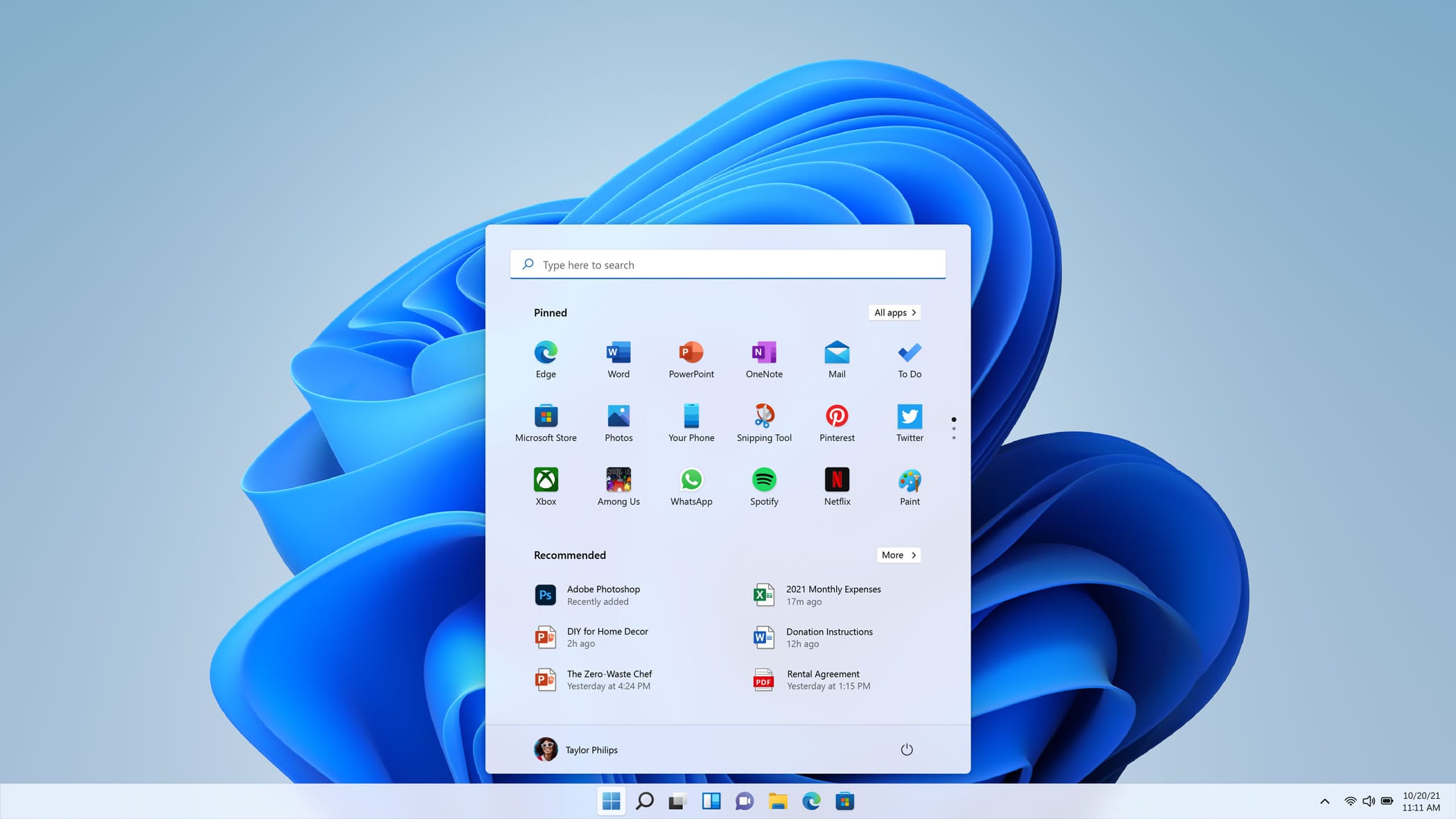
The main difference in windows 11 will be the re-designed start menu and icons. Initially your start menu will be in the middle (but we recommend) moving it to the left, like the old windows 10 start menu.
Here is a quick summary of the top 5 changes in windows 11
- Copy & Paste are now icons
- Better Microsoft Store
- Copilot replaces Cortana
- New Design in settings
- Modern Icons
Restoring Windows 10
In the event you don’t like Windows 11, or you want to go back to Windows 10 temporarily, you can actually roll back to windows 10.
Go to Settings -> Recovery -> click Go Back
This may take a while, so be patient.
Note: You have only 10 days after upgrading to windows 11 to revert back to windows 10. After this period you’ll need to perform a clean install of windows 10 instead.
Book Your Windows 11 Upgrade Today
We upgrade computers to Windows 11 so you continue to receive security updates and keep your computer safe. We check if your computer is compatible with Windows 11 before we begin. Call us today on 131 546 or fill out the form on this page and we’ll get back to you ASAP.

Paul Zdzitowiecki is an IT specialist and contributor at Jim’s IT, with extensive experience in computer repairs, managed IT services, and business technology solutions across Australia. Paul regularly writes about computer repairs, Wifi and internet optimisation, cybersecurity, and business IT support, delivering practical, easy-to-understand advice that helps readers solve real-world tech problems.