
Recover Data From an External Hard Drive: What to Do (And What Not to Do)
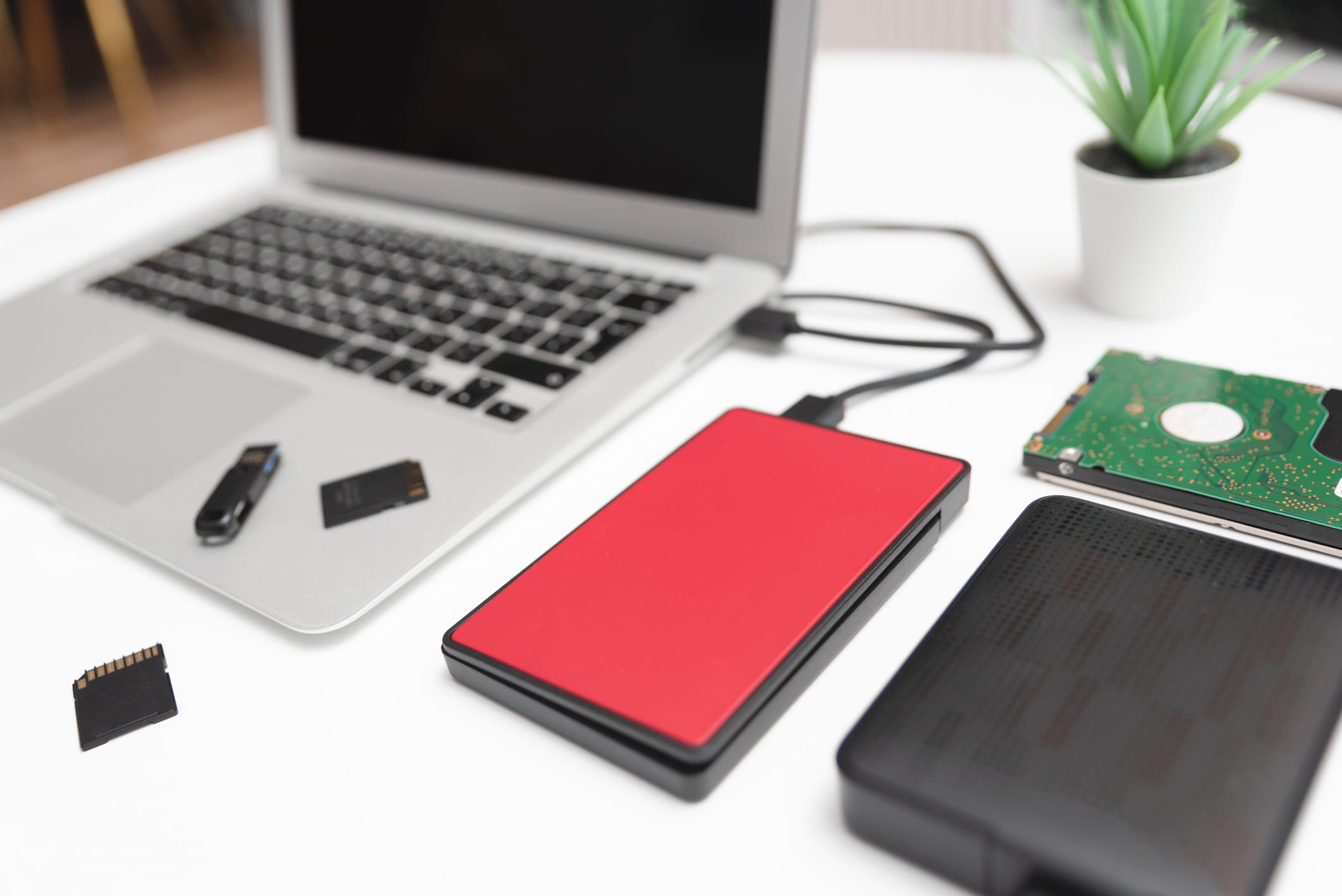
External hard drives tend to fail at the worst possible time. One day they work. The next day they don’t show up, ask to be formatted, or start making worrying noises.
Most people panic and start clicking things, downloading tools, or trying random fixes they’ve seen online. That’s understandable, but it’s also where a lot of recoverable data gets permanently lost.
The tricky part is knowing when it’s safe to try something yourself and when you should stop immediately.
In this article, we’ll cover:
- What usually goes wrong with external hard drives
- First things to do when a drive stops working
- When DIY data recovery can work
- When DIY recovery makes things worse
- Can data be recovered from a physically damaged drive
- How to avoid this happening again
- Why quick fixes often make things worse
- One last thing to keep in mind
What Usually Goes Wrong With External Hard Drives
Most external hard drive failures fall into a few broad categories. Knowing which one you’re dealing with helps determine what you should and shouldn’t try next.
Accidental Deletion and Formatting
This is the least severe scenario and also the most common.
Files are deleted by mistake, or the drive is accidentally formatted when plugged into a new computer or operating system. In these cases, the data often still exists on the drive, just not where the system expects it to be.
Recovery is often possible here, but only if the drive hasn’t been used since.
Corruption and File System Errors
Corruption usually happens when a drive is unplugged improperly, loses power, or is used across different systems.
The drive may show up but appear empty, show the wrong file size, or be marked as RAW. This is where people are often prompted to “scan and fix” or format the drive, which can make things worse.
Corruption doesn’t always mean the data is gone. It means the map to the data is damaged.
Physical Damage and Power Issues
Drops, knocks, water exposure, and cheap power supplies can all cause physical problems.
Warning signs include clicking sounds, repeated spin-ups, or the drive not powering on at all. These are the most sensitive situations, and they’re where DIY attempts carry the highest risk.
First Things to Do When a Drive Stops Working
What you do in the first few minutes after a drive fails matters more than most people realise. The goal is to avoid turning a recoverable problem into a permanent one.
Why You Should Stop Using It Immediately
As soon as something looks wrong, stop using the drive.
Don’t copy files onto it. Don’t install software onto it. Don’t keep unplugging and reconnecting it hoping it will “come good”.
Every write to the drive risks overwriting data that could otherwise be recovered, especially in cases of deletion or corruption.
What "Not Detected" Actually Means
When a drive doesn’t show up at all, it doesn’t always mean it’s dead.
It can mean:
- the enclosure has failed
- the USB cable or port isn’t supplying enough power
- the drive electronics aren’t responding properly
The key point is that “not detected” is a symptom, not a diagnosis. Treating it like a software issue without checking the basics can cause damage.
Checking Cables, Ports, and Enclosures Safely
There are a few low-risk checks you can do:
- try a different USB cable
- plug directly into the computer, not a hub
- try a different USB port
- if it’s a desktop external drive, check the power adapter
What you should not do at this stage is format the drive, run repair commands, or install recovery software directly onto it.
When DIY Data Recovery Can Work
There are situations where recovering data yourself is reasonable. The key is knowing what kind of problem you’re dealing with and stopping before you cross the line into risky territory.
Deleted Files Versus Damaged Files
If files were deleted by mistake, or the drive was accidentally formatted and then left alone, DIY recovery often has a decent chance.
In these cases, the data usually still exists on the drive. The system just no longer knows where it lives. Recovery software can sometimes rebuild that map.
Once files are damaged, partially overwritten, or the drive has been heavily used after the incident, the chances drop quickly.
When Software Tools Make Sense
Recovery software can be appropriate when:
- the drive is detected normally
- there are no unusual noises
- the issue is deletion or simple corruption
- the drive hasn’t been written to since the problem occurred
Even then, software should be installed on a different drive. Never install recovery tools onto the affected external drive itself.
One careful scan is better than five aggressive ones.
Situations Where DIY Has a Reasonable Chance
DIY recovery is usually safest when:
- the drive mounts but files are missing
- the drive shows the wrong file structure
- a partition was deleted accidentally
The moment you see repeated errors, freezing scans, or hear physical noises, that’s a sign to stop.
When DIY Recovery Makes Things Worse
This is where a lot of well-intentioned advice online does real damage. Many drives that could have been recovered end up permanently unrecoverable because of what someone tried next.
Repeated Scans and Overwriting Data
Recovery software isn’t harmless. Every scan puts stress on the drive, and some tools write temporary data as they work.
Running scan after scan, trying multiple tools, or letting a deep scan run repeatedly can overwrite data that was still recoverable earlier.
If the first scan doesn’t find what you need, that’s often a sign to stop, not try harder.
Formatting, CHKDSK, and Command Prompt Risks
This is one of the most common mistakes we see.
Windows may suggest formatting the drive or running CHKDSK to “fix errors”. These tools are designed to make a drive usable again, not to preserve data.
They can:
- rewrite file structures
- discard damaged entries
- permanently remove references to lost files
Once that happens, even professional recovery becomes harder and more expensive.
Clicking Noises and Physical Warning Signs
If a drive clicks, grinds, spins up and down, or disappears during scans, stop immediately.
Those sounds usually mean physical damage. Continuing to power the drive on can make the damage worse each time.
This is the point where DIY attempts carry the highest risk of permanent loss.
Can Data Be Recovered From a Physically Damaged Drive
Physical damage sounds like the end of the road, but it doesn’t always mean the data is gone. It does mean you need to stop treating it like a software problem.
Logical vs Physical Failures
A logical failure is about data structure. Files are deleted, partitions disappear, or the drive shows up as RAW.
A physical failure involves the hardware itself. This can include damaged heads, failed electronics, or motor issues.
Logical problems are often recoverable with the right approach. Physical problems require a very different process.
Why Opening the Drive is a Bad Idea
Opening a hard drive outside a clean environment almost always makes things worse.
Dust, static, and fingerprints can damage the platters instantly. Once that happens, recovery chances drop sharply, even for specialists.
Despite what some videos suggest, this is not something that can be done safely at home.
What Professionals Do Differently
Professional recovery services use clean rooms, specialised tools, and controlled environments to work on physically damaged drives.
They don’t “fix” the drive for reuse. They stabilise it just enough to copy the data off safely.
This is also why costs rise sharply once physical damage is involved.
How to Avoid This Happening Again
Once you’ve dealt with a failing drive, the big question is how to stop it happening next time. Most data loss we see isn’t bad luck. It’s usually down to how and where data is stored.
Backup Habits that Actually Work
The most common mistake is relying on a single external hard drive as the only copy of important files.
A safer setup usually means:
- having at least two copies of important data
- keeping one copy separate from the computer
- checking backups occasionally to make sure they still work
This doesn’t need to be complicated, but it does need to be intentional. Backups that haven’t been checked often fail quietly until it’s too late.
This is an area where getting help can make a big difference. Setting up a simple, reliable backup system once is far easier than trying to recover data later.
Why External Drives Fail More Often Than People Expect
External hard drives are handled more than internal ones. They get moved, bumped, unplugged, and powered on and off regularly.
Cheap enclosures, power issues, and heat all add to the wear. Over time, failure becomes a matter of when, not if.
External drives are best treated as backup tools or transfer devices, not as permanent storage for the only copy of your data.
Why Quick Fixes Often make Things Worse
When an external hard drive fails, most people don’t lose data because the drive suddenly died beyond recovery. They lose it because they kept trying things without knowing what they were dealing with.
That’s the danger zone.
A lot of online advice jumps straight to tools, commands, or software downloads. The problem is that those steps assume the issue is purely logical and safe to work on. If that assumption is wrong, each attempt can quietly reduce the chances of recovery.
This is where getting proper help early matters.
Jim’s IT technicians regularly see external drives at the point where the data is still recoverable, but only if the right call is made next. That usually means stepping back, checking how the drive is behaving, and working out whether it’s safe to proceed or whether further attempts will do more harm.
In many cases, the most valuable step isn’t running another scan. It’s stopping early and getting a clear diagnosis before irreversible damage is done.
One Last Things to Keep in Mind
Data recovery is less about tools and more about judgement.
Knowing when to act and when to stop makes a huge difference. If you’re unsure, getting advice early usually saves time, money, and stress later on.
Even when recovery isn’t the goal, help with setting up proper backups and safer storage can prevent the same situation from happening again.
Book Your Data Recovery Service Today
We can recover lost, deleted or corrupted files from all types of hard drives. We recover data from PCs, Macs, Laptops and all forms of storage media. Call us today on 131 546 or fill out the form on this page and we’ll get back to you ASAP.

Adrian is based in Morphett Vale, South Australia. He studied IT after leaving school and, despite working various roles along the way, has always stayed hands-on with technology through personal projects and ongoing learning. He has experience providing IT support in professional services environments and enjoys helping customers across the Jim’s network with practical, real-world tech solutions.