
5 Simple Tricks to Make Your PC Boot up Faster

Tired of having to wait for your PC to boot up? Is your PC slowing down over time? Here are five ways you can speed up your PC today with these simple tricks.
1. Enable Window's Fast Start Up Mode
Windows has a feature called Fast Start up. This is a simple setting that should be turned on by default. But it’s worth checking as sometimes a windows update can turn it off automatically.
To check if Windows fast start is enabled,
- Open Control Panel in Icon view and choose Power Options.
- Click Choose what the power buttons do in the sidebar.
- You should see a checkbox next to Turn on fast startup in the list of options. If it's grayed out, you'll need to click the Change settings that are currently unavailable link at the top of that window first, then turn on the Fast Startup feature.
- click Save changes when finished.

2. Adjust Your UEFI/BIOS Settings
Some computers have a fast boot up option available in their BIOS settings. Different computers will require you to push either F2, Delete, F10 or F12 when the computer is starting up.
The BIOS is a chip on the computer motherboard that helps runs basic diagnostic tests when the computer turns on.
Not all BIOS’ have a fast start up option.
It’s best to speak with a local computer technicians from Jim’s IT, as they will be able to do this for you.
Search for any fast boot settings in the menu and turn it on.

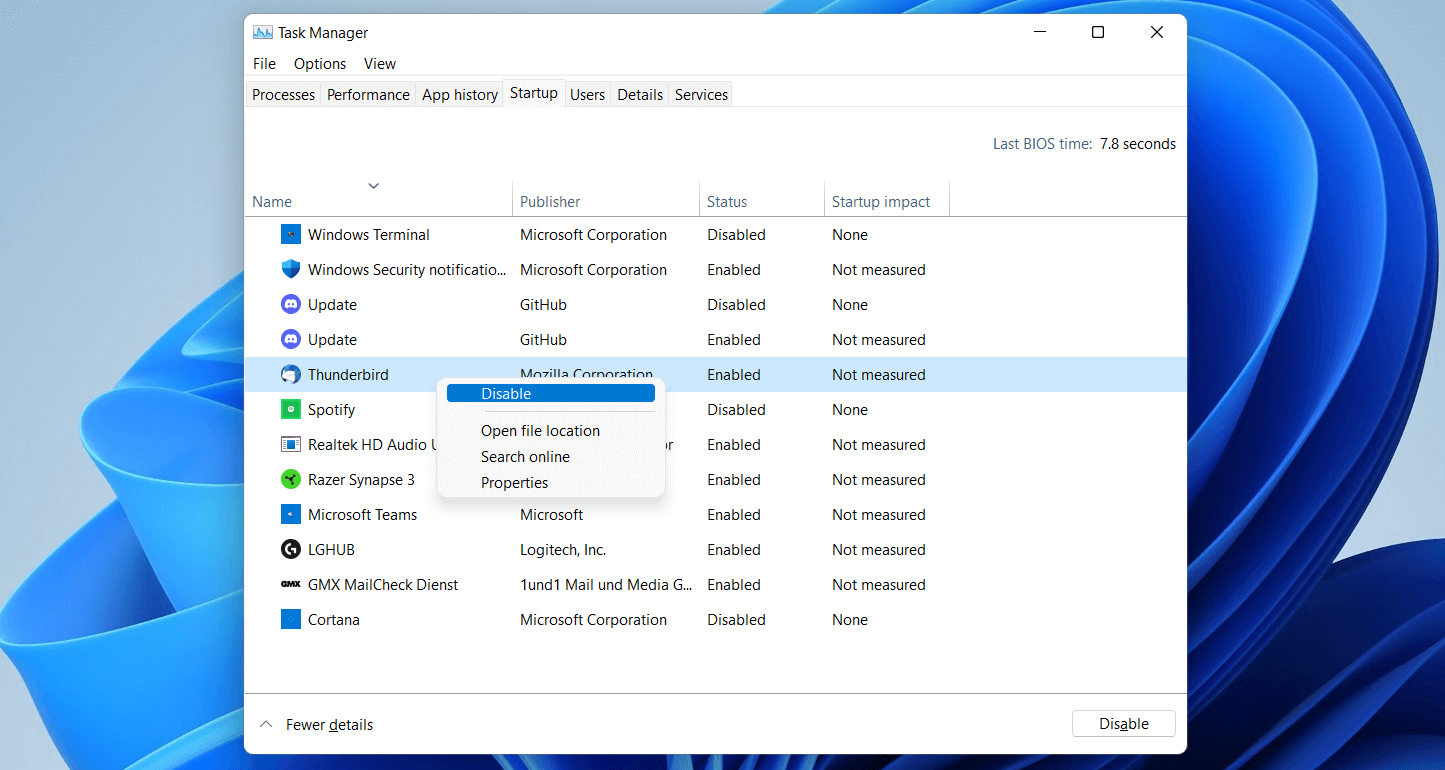
3. Cut Down on Startup Programs
Windows computer have a startup program list, - which are programs that will load in the background when your computer starts up.
However, a lot of these programs are not required to boot up when you turn the computer on, and the more programs in the boot up list, the slower your computer will be when turning on.
To see what programs launch at startup: do the following:
- press Ctrl-Shift-Esc to bring up the Task Manager.
- Click More details along the bottom,
- Then head to the Startup tab (Windows 10)or click the Startup apps category (Windows 11)
- If you see a program in this list you don't need at startup—especially if it has a high startup impact—head into that program's settings and uncheck the option to launch it with Windows.
4. Let Windows Updates Run During Downtime
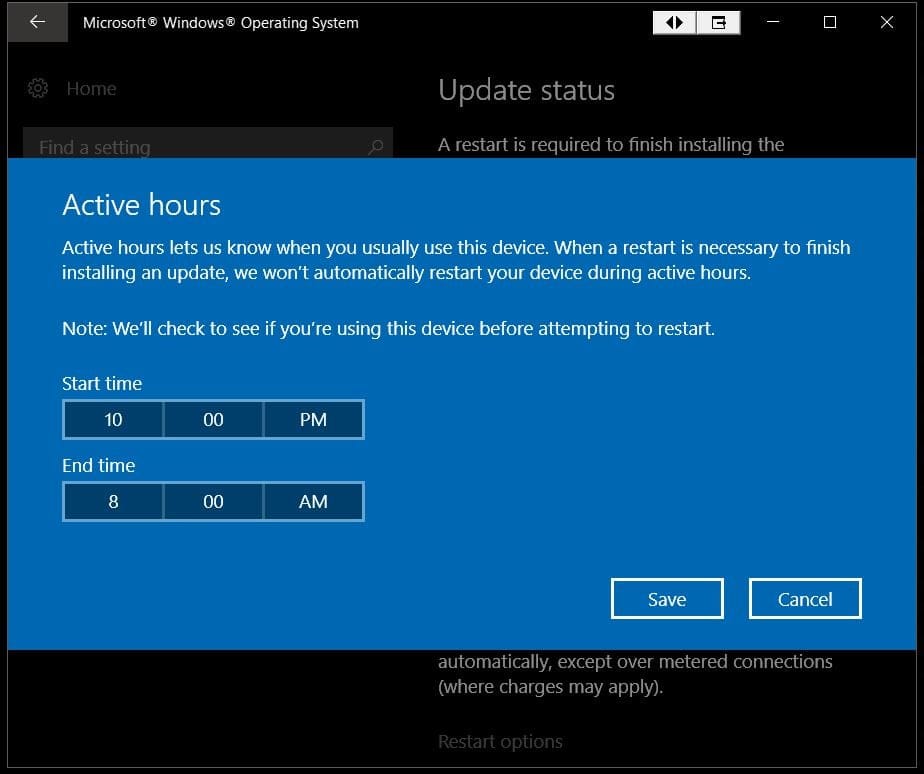
Normally windows will install and finalize windows updates when you try to shut down and finalize them when you turn the computer on.
This will delay the computer from turning on. We recommend setting Windows Updates to occur during active hours.
To set this up in Windows 10:
- Go to Settings > Update & Security > Windows Update > Change Active Hours, and click the Change
To set this up in Windows 11:
- Open Settings > Windows Update > Advanced options, then click Active hours and change the drop-down to
- Tell Windows what time you tend to use the device most—say, from 9 to 5—and it'll run automatic updates and reboots outside that timeframe, when the system is more likely to be idle.
5. Upgrade to an SSD (Solid State Hard Drive)
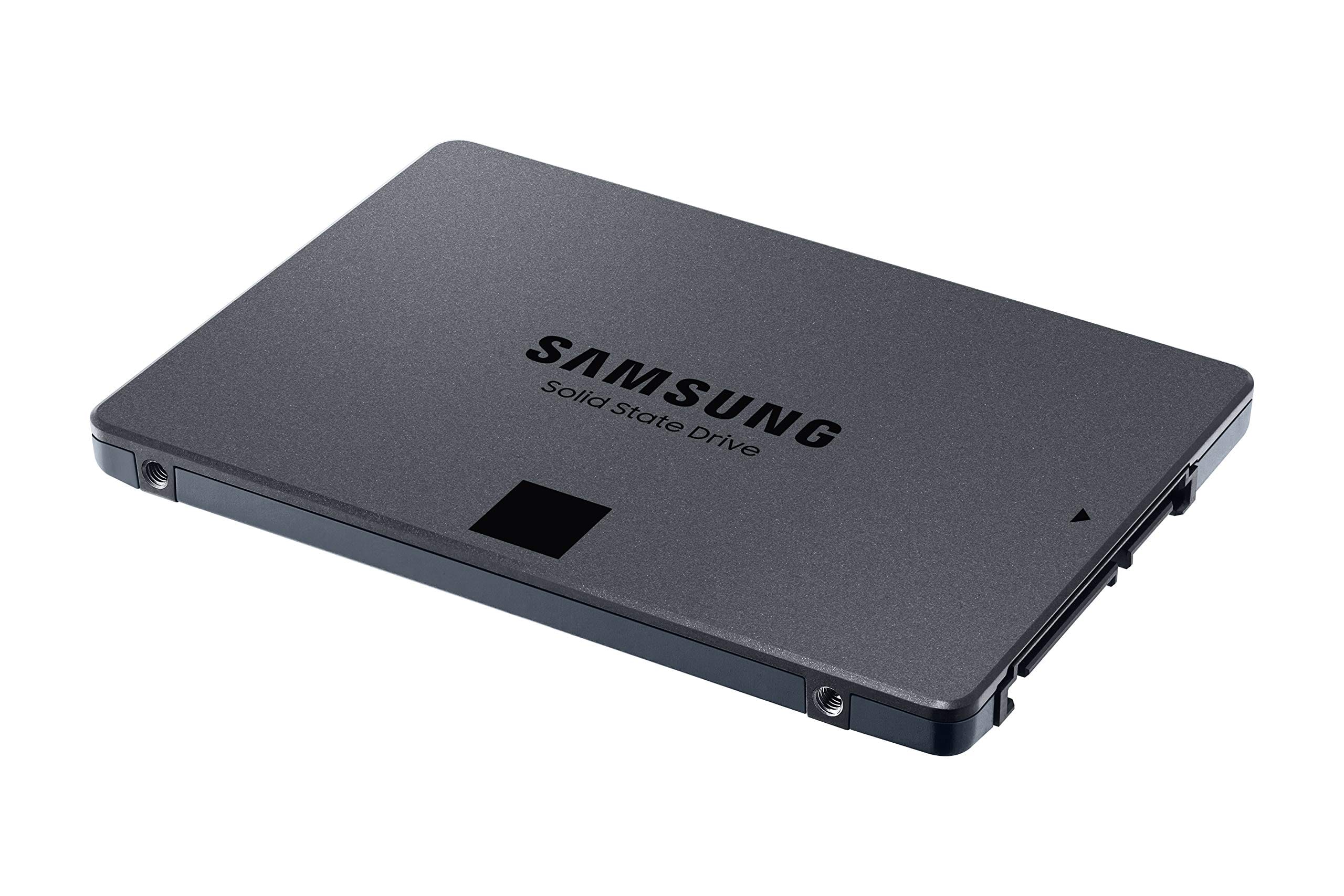
A lot of PCs and laptops still ship with traditional, slower mechanical hard drives. The big problems with these mechanical hard drives, is they wear out and slow down over time.
You may have experienced this when you purchased a new computer, it’s fast and over the coming 2-3 years, it dramatically slows down. This is simply due to the mechanical hard drive wearing out.
Any PC, Laptop and even Macs can be upgrade with a Solid State Hard drive (SSD), this will make your computer boot up in seconds, and programs load instantly.
Also, the SSD drive is a chip, and has no moving parts, so it never wears out or slows down.
Speed Up Your PC or Laptop Today
Has your computer been slowing down over the past 18-24 months? Let us help you speed up your computer, so it runs like new again. We provide both software and hardware solutions for slow computers, including PCs, Laptops, Tablets and even Macs. Call us on 131 546 or fill out the form on this page and we’ll get back to you ASAP.

Paul Zdzitowiecki is an IT specialist and contributor at Jim’s IT, with extensive experience in computer repairs, managed IT services, and business technology solutions across Australia. Paul regularly writes about computer repairs, Wifi and internet optimisation, cybersecurity, and business IT support, delivering practical, easy-to-understand advice that helps readers solve real-world tech problems.