
Top 10 Computer Maintenance Tips

Most people regularly service their car every six months and understand how important it is to regularly change the oil, change the tyres, clean out garbage - as it keeps their car running smoothly without any large unexpected repair bills. Computers are the same as cars, but most people don’t bother with regular computer maintenance, as they don’t have any immediate problems that are affecting their computer.
This mindset always comes back to bite them, as computers (just like cars) have moving parts, need to be cleaned out, and gather junk files which can cause their computer to crash in the future. Around 90% of computer problems such as failed hard drives, blue screen errors, boot up errors and general slowness can be eliminated with regular computer maintenance.
The greatest benefit of regular computer maintenance is that it will extend the lifespan of your computer by 2-3 years. Most computers will last on average 3-5 years. With regular computer maintenance you can get another 2-3 years, saving you thousands in new computer and software costs.
Here are the top 10 computer maintenance tips that will speed up your computer and most of these you can do yourself.
1. Delete Unwanted Programs
Over time your computer will build up a library of old and unused programs that may have been installed or downloaded in the past. As these programs build up they can slow down the start up of your computer and continue to run updates in the background making your computer feel sluggish.

A lot of computers even come with trialware or bloatware which is free versions of software that come pre-installed on new computers with the hope that users sign up for paid versions.
Windows can come with a lot of preinstalled software, such as Xbox, Candy crush, HP support assistant, Dell Support assistant and others.
The easiest way to remove unwanted software, is to go to ‘Control Panel’ and go through the list of installed programs, and right click on any program you don’t need or don’t recognise and click “uninstall”.
To remove any unwanted programs on your Mac, just go to your ‘Applications’ folder and click “move to trash”
2. Free Up Hard Drive Space
Freeing up hard drive space is one of the best things you can do to extend the life of your computer. Most Windows computers with an internal SSD hard drive, need around 20-25% free space. If you continue to use a computer with low free space, it will agressively wear out the SSD hard drive, and eventually it will die, causing you to lose all your data.
The easiest way to check how much free space you have on your windows computer is to open ‘file explorer’ and view the bar chart of free space on Drive C:
If you are not sure what is taking up all your hard drive space, we recommend using a program called “Space Sniffer” download link here: this will run a visual scan on your hard drive and show you exactly what is taking up space. If you need help with this, call our computer technicians on 131 546
For Mac users, we recommend a piece of software called “Disk Inventory X” download link here: as the internal mac software does not tell us exactly what is taking up your hard drive space.
3. Fast Startup
Windows 10 and Windows 11 has a option called “fast startup”, this is a new feature, when enabled can shave of around 30 seconds of boot time for computers with mechanical hard drives, or 3-5 seconds with SSD hard drives.
Here are the exact steps to turn on fast startup on your windows computer.
- Open Control Panel: Search for "Control Panel" in the Windows search bar and select it.
- Navigate to Power Options: In the Control Panel, go to "Hardware and Sound" and then "Power Options".
- Choose what the power buttons do: On the left-hand side, click on "Choose what the power buttons do".
- Change settings: If the shutdown settings are grayed out, click on "Change settings that are currently unavailable".
- Enable Fast Startup: Under "Shutdown settings," check the box next to "Turn on fast startup (recommended)".
- Save Changes: Click on "Save changes" to apply the new setting.
- Restart your computer: To see the effects of the change, shut down and restart your computer.
The second way to improve your computer boot up time, is to turn off programs from loading when the computer boots up for the first time. Alot of people have 10 or more programs loading when the computer turns on, which can slow down the boot up process.
Note: these programs will still open which you click on them normally via the start menu or desktop icons.
Here are the exact steps to disable unwanted startup programs: Using Task Manager:
- Open Task Manager: Right-click the taskbar and select "Task Manager," or press Ctrl+Shift+Esc.
- Go to the Startup tab: Click on the "Startup" tab.
- Disable the programs: Right-click on the programs you want to disable and select "Disable
4. Anti Virus & Internet Security
Most people are relying on the basic anti virus software included in Windows 10 and Windows 11. What we have found that Microsoft Defender is woefully inadequate at protecting your computer against the lastest viruses, malware, and online threats.
Jim’s IT recommend purchasing a paid anti virus and online security program from any of the major providers. This gives your computer an extra layer of protection, and will protect your computer against 98% of viruses.
We also recommend running a regular anti virus scan each fortnight, and a full anti virus (deep scan) every month. If you download a lot of free software programs or have young children using your computer, we recommend running scans once per week.
In relation to Apple Mac computers, they “officially” are not affected by viruses, but we do so the rare virus in the wild affecting macs. For this reason we also recommend using a paid anti virus & internet security software for your mac. If you suspect your computer has a virus, and you are not sure how to remove it, contact us on 131 546 about our virus removal service.
5. Security Updates
It’s important to regularly update your computer with security and software updates. A lot of Microsoft Windows updates are done automatically, but there are sometimes optional updates that need to be done manually.
If you’re using a PC or Laptop running Windows, you can find and install software updates in the Microsoft Store by following these steps:
- Open the Microsoft Store.
- Click Library.
- Click Update all or the Get Updates button.
When using a Mac, you‘ll update most of your software and applications via the Apple App Store. You’ll see a red circle with a number in the top right corner of the App Store icon if any of your apps have a software patch available.
Here’s how to install them:
- Click on the App Store icon.
- Click the Update button next to individual apps to begin the process, or click the Install All Updates button to do them all at once.
6. Dust Clean Out
This one is most important for PC and Laptops users, as dust can build up inside their computer and eventually cause static electricity and short circuit their computer.
For PC users, we recommend vacuuming the inside of your PC every six months. We recommend using a professional computer technician, as all electricity needs to be discharged and special brushes need to be used, to prevent any damage to the components. If your PC is randomly crashing, or overheating dust build-up may be the cause.

Laptops can start to overheat when dust built up in the fan vents. This is easy to see, all you do is turn the laptop up side down and if the laptop vents are clogged, you can use a soft (clean) paint brush to move all the dust and then a regular vacuum cleaner.
If the dust is imbedded inside the laptop itself, we do not recommend doing this yourself, as you can easily damage the internals. Call Jim’s IT so one of their professional computer technicians can do this for you.
7. Backups
Backups are like an insurance policy, you hope you never need to use them, but it’s there in case of emergencies. So many customers understand the importantance of backups, but are extremely lax when it comes to performing regular backups.
For this reason, we recommend using a basic online backup platform such as Dropbox, One Drive, or Google Drive. These are easy to install and all we do is put a folder on the customer’s desktop and they store all their files inside this folder.
The folder and it’s contents are automatically backed up to the cloud, and can be accessed via a web brower or another computer if their computer crashes.
For customers who are overally concerned about their data, we also recommend manually backing up this folder to a external hard drive, once per week or setting up automatic backups via the free windows backup software.
8. Update Operating System
Updating your operating system is critical for security, performance and being able to use the latest programs and apps.
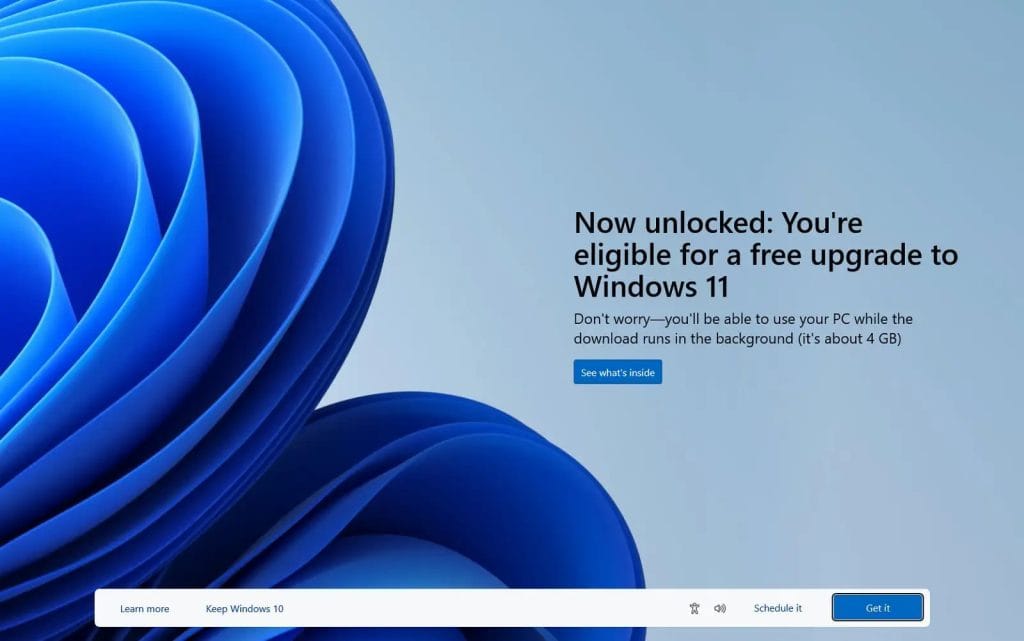
Windows 10 support (and security updates) will end of October 14th 2025, so we recommend all Windows users upgrade to Windows 11 asap.
If you are using an even older version of windows such as Windows 7 or Windows 8 speak with our team, as not all older computers are compatible with Windows 11, and you may need to purchase a new computer.
Here are the exact steps to update Windows 10:
- Open Settings.
- Click on Update & Security
- Click Windows Update then install the newest version of Windows 10.
Here are the exact steps to update Windows 11:
- Open Settings.
- Click Windows Update to install the newest version of Windows 11.
If you are using a Mac, here are the exact steps to update your Mac OS
To get your system up to date:
- Open System Settings.
- Click General, then click Software Update.
- Click the Update Now or Upgrade button to install the newest version of Mac OS.
9. Malware Scans
Installing an using anti virus software is not enough. The biggest threat we see with our customers, is malware. This has many forms such as fake google search results, strange toolbars, fake driver updating programs, and more.

Malware is also a common problem on Apple Mac Computers and can cause your computer to slow down, crash, and cause the internet to stop working.
We see more computers infected with malware then actually infected with a virus. For this reason, we always installed ‘Malwarebytes’ on all our customers computers. We always run Malwarebytes in conjunction with a paid anti virus software, as Malwarebytes will pick up things the anti-virus software misses, and vice versa.
10. Update Passwords
Passwords seem to have become a problem for almost every computer user in the past 4-5 years. With so many online accounts and hacks happening almost daily, managing your passwords has become quite a challenge.
The first tip is making a audit of all your online accounts, and changing passwords to accounts that have very basic words or phrases such as ‘password123’ or easy to guess words. All passwords need to be at least 10 characters with a random mix of letters and words and special characters.
To make this easier we recommend using a password manager program such as ‘Last Pass’ as it will securely store all your passwords, update them as needed, and also let you know if you have duplicate passwords and what passwords are weak.
Another strong option worth considering is NordPass Security — it offers end-to-end encrypted password storage, built-in data breach scanning, and secure password sharing, making it a solid choice for both home users and small businesses looking for an extra layer of protection
Book Your Computer Maintenance Today
We speed up slow computers by freeing up hard drive space, updating your operating system and cleaning up your computer. Call us today on 131 546 or fill out the form on this page and we’ll get back to you ASAP.

Paul Zdzitowiecki is an IT specialist and contributor at Jim’s IT, with extensive experience in computer repairs, managed IT services, and business technology solutions across Australia. Paul regularly writes about computer repairs, Wifi and internet optimisation, cybersecurity, and business IT support, delivering practical, easy-to-understand advice that helps readers solve real-world tech problems.